Resources
How to set up two-factor sign-in
Your account holds patient records, so a password on its own is not enough protection. Two-factor sign-in adds a second step: after your password, you type a 6-digit code from an app on your phone. Someone who learns your password still cannot get in without your phone.
It takes about two minutes to set up. Anyone can turn it on at any time, and it will soon be required for practice admins. If your account needs it, AI Dietitians tells you when you sign in.
What you need
An authenticator app on your phone. Any standard app works, for example Google Authenticator, Microsoft Authenticator, Apple Passwords (on iPhone, iPad and Mac) or a password manager with one-time codes such as 1Password or Bitwarden. AI Dietitians does not use text messages for sign-in codes.
1. Open Settings, then Security
Sign in, open Settings and choose Security. If your role requires two-factor sign-in, AI Dietitians takes you straight to this page after you sign in, and the rest of the app opens once set-up is finished.
2. Add your authenticator app
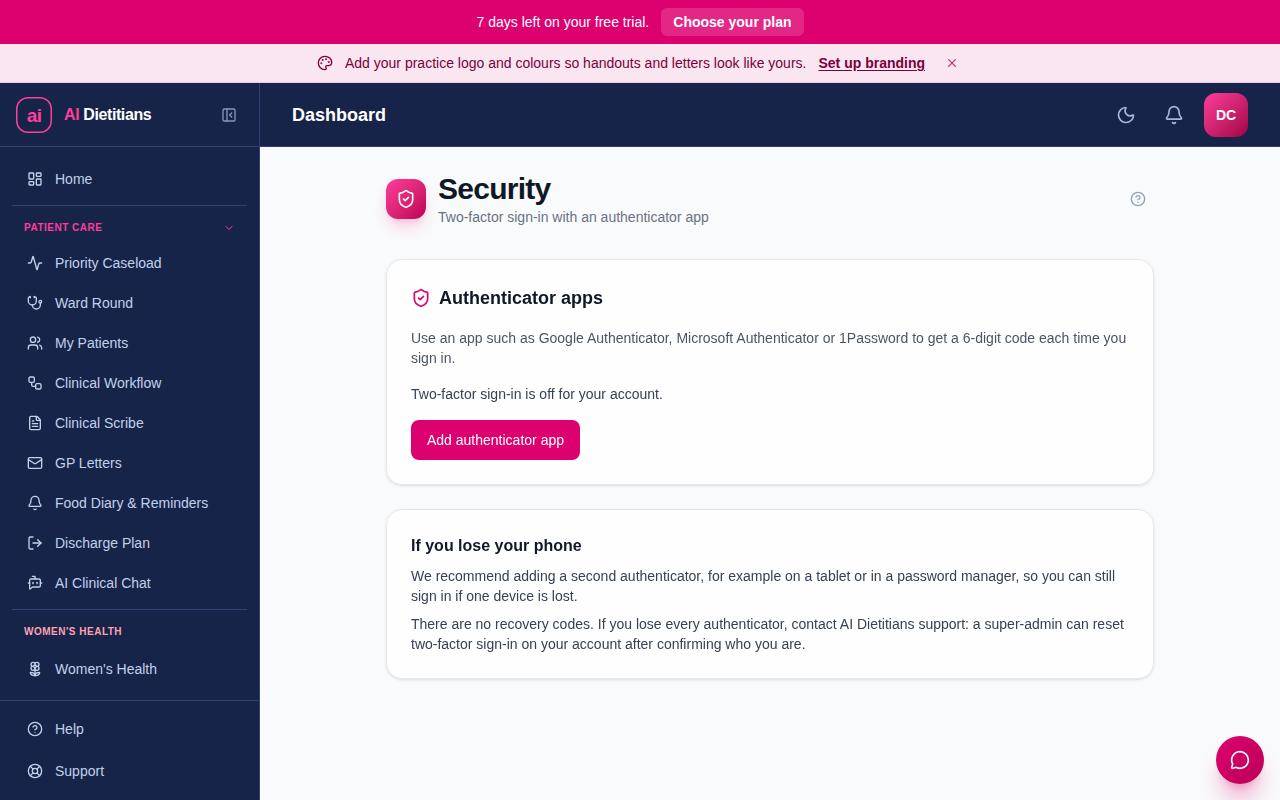
Select Add authenticator app. A QR code appears, with a set-up key underneath it.
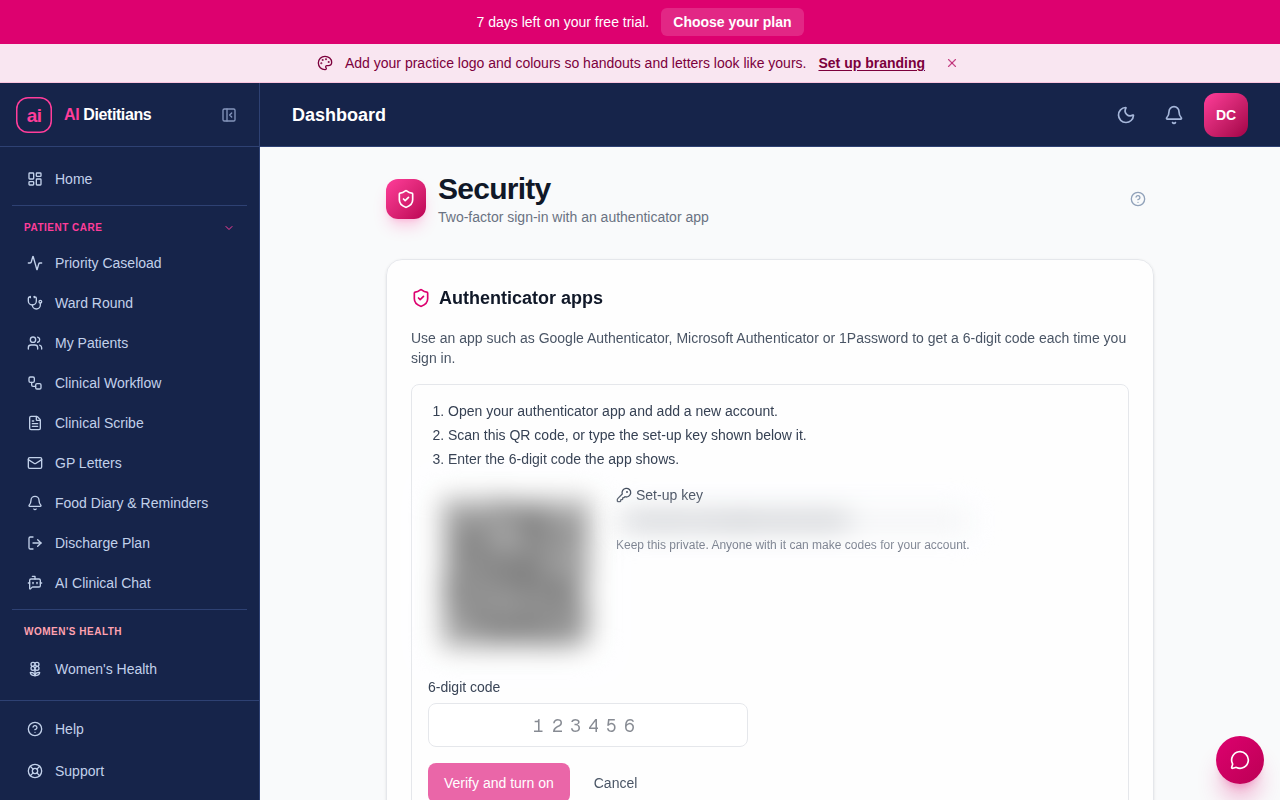
Open your authenticator app, add a new account, and scan the QR code. If you cannot scan it, type the set-up key into the app instead. Keep the key private: anyone who has it can make codes for your account. The QR code and key in this guide are blurred for that reason.
3. Enter the code and turn it on
Your app now shows a 6-digit code for AI Dietitians that changes every 30 seconds. Type the current code into the box and select Verify and turn on.
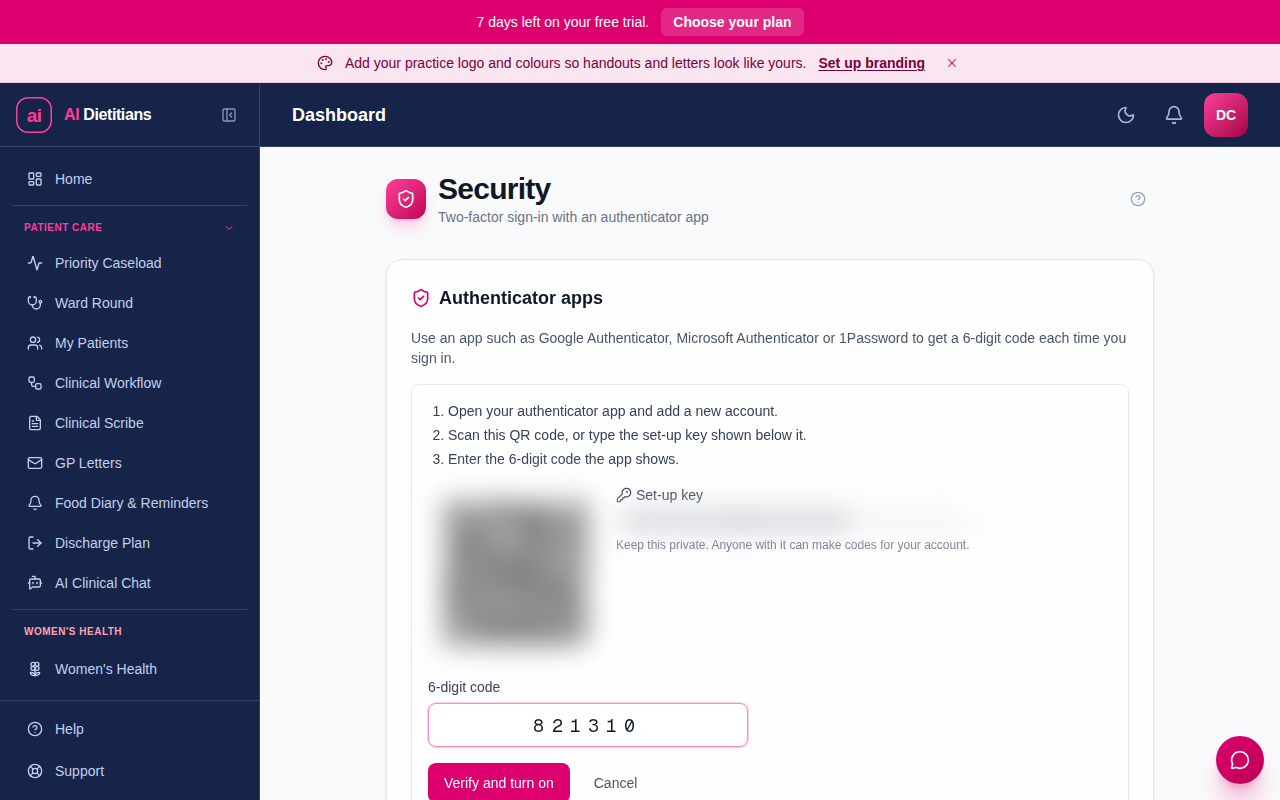
When it works, the page says two-factor sign-in is on. Turning it on signs out your other devices, so sign in again on them with your password and a code.
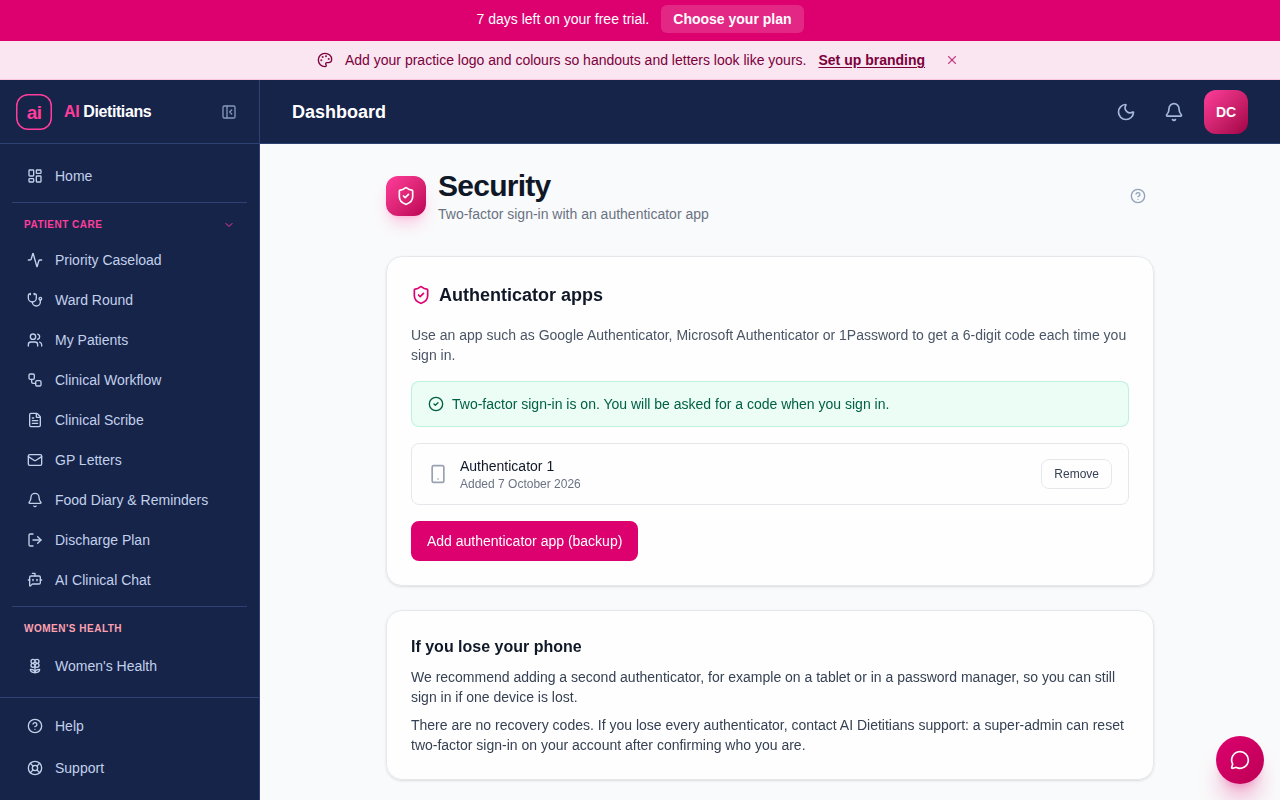
4. Add a backup device (strongly recommended)
There are no printable recovery codes, so a second authenticator is your safety net. Select Add authenticator app (backup) and repeat the steps with a second device or a password manager. If one is lost, the other still works.
Signing in from now on
Sign in with your email and password as usual. AI Dietitians then asks for the current code from your authenticator app. Type it in and you are in.
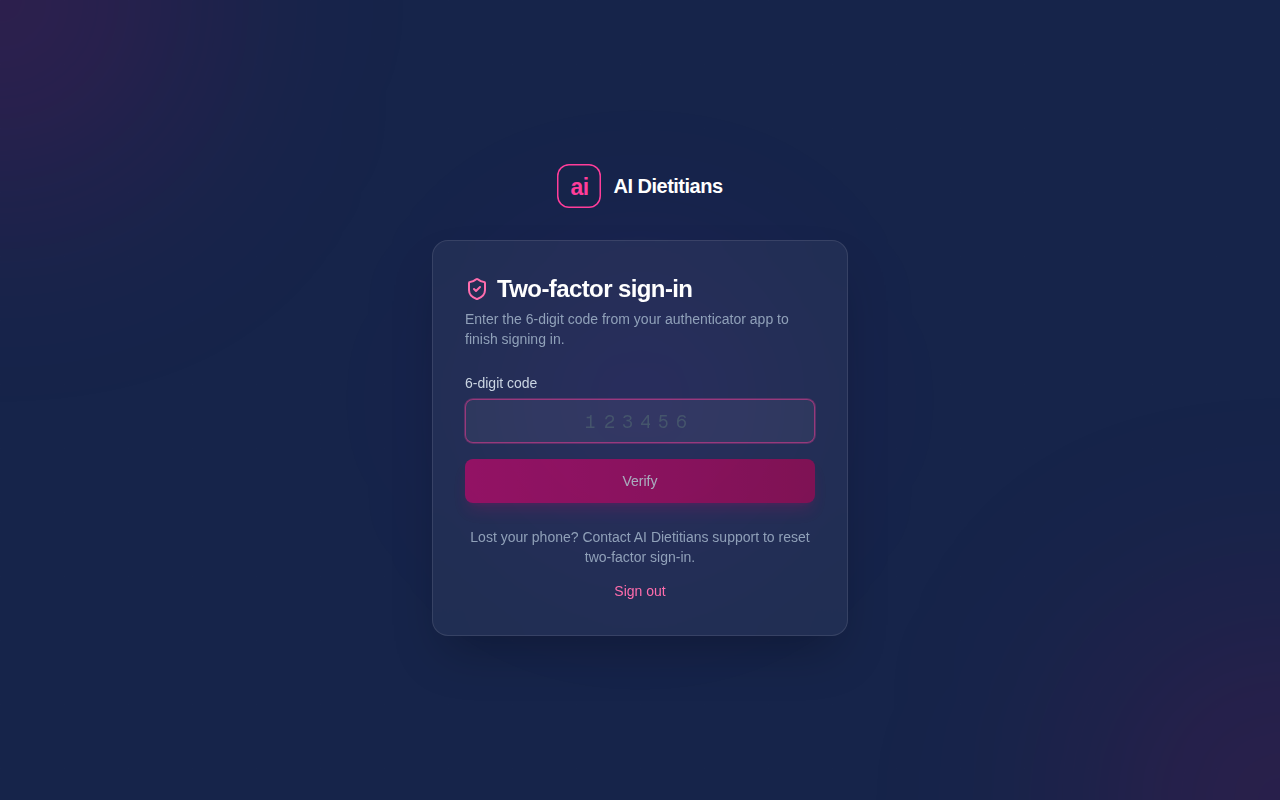
If a code is rejected, check that the time on your phone is set automatically, wait for the next code and try again. After several quick attempts you may be asked to wait a minute.
If you lose your phone
Use your backup authenticator if you added one, then remove the lost device on the Security page. If you have no backup, contact your practice admin or contact us. An administrator can reset two-factor sign-in on your account after confirming it is you, and you then set it up again on your new phone.
Connecting ChatGPT or Claude
If you connect AI Dietitians to ChatGPT or Claude, you may be asked for your code when you approve the connection. API keys you have already created keep working.
Questions
Your password is still needed: the code is an extra step, not a replacement. If you change phones, add the new phone as an authenticator first, then remove the old one. For anything else, get in touch.